On this page
Scheduled tasks send your emails, delete guest records, update exchange rates and keep the site awake. When they stop, nothing breaks straight away. Emails queue up, the database grows and problems pile up quietly. This guide explains how the scheduler works and what to do for each StorePulse task check.
nopCommerce 5.00 admin
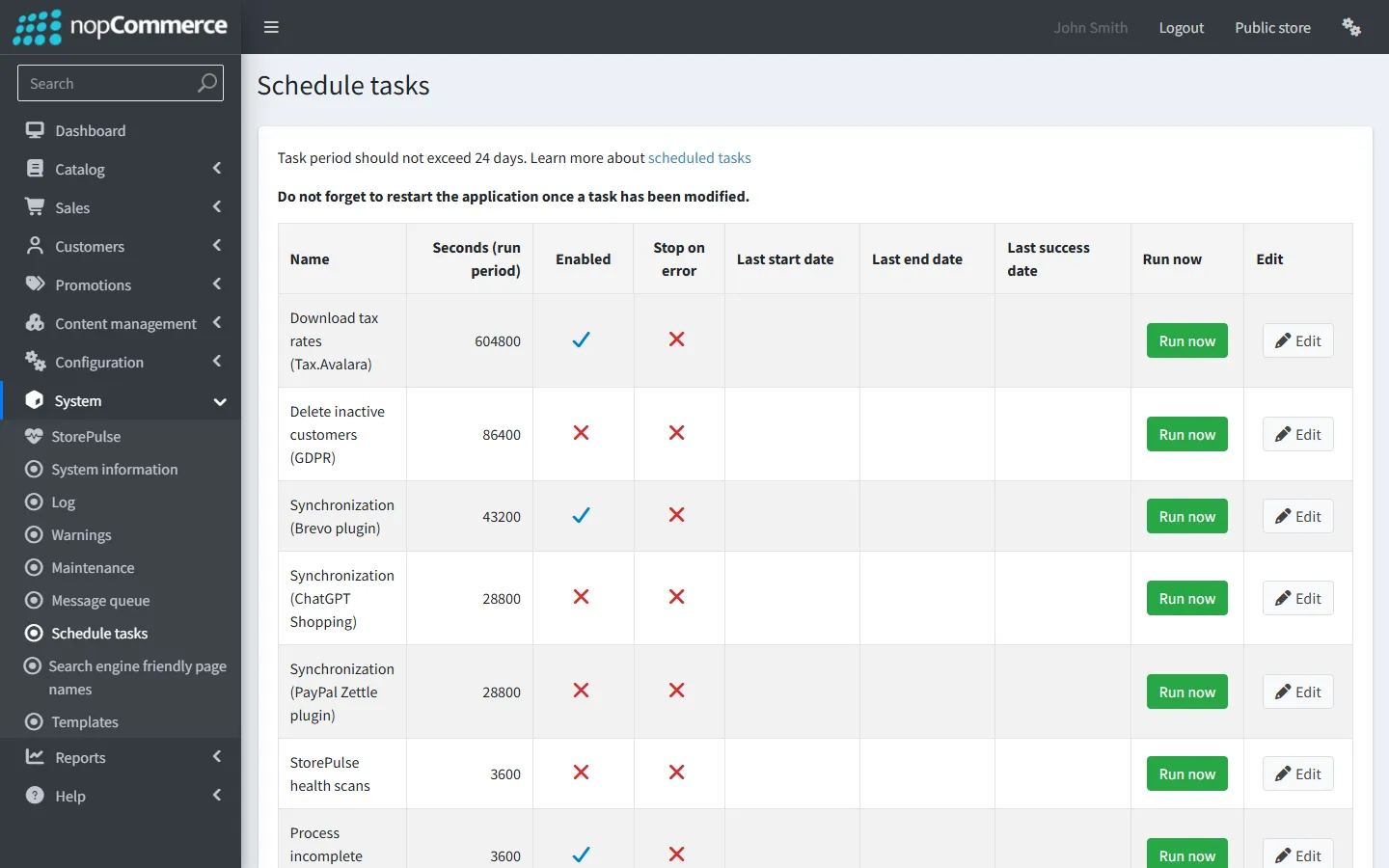
Scheduled tasks running on time
StorePulse check TASK-001
What StorePulse checks
StorePulse reads every enabled task in System → Schedule tasks, apart from its own, and compares the last start time with the task’s interval. A task is overdue when it hasn’t started for three of its intervals, and for at least ten minutes. Both limits can be changed in StorePulse settings.
Why it matters
Most stores depend on the “Send emails” task every minute and on “Delete guests” every ten minutes. A stopped scheduler means order confirmations and password resets stay in the queue, and guest records grow without limit.
Common causes
- The application isn’t running. On IIS the default idle timeout of 20 minutes stops the site after a quiet period, and nothing runs until the next visitor arrives.
- The scheduler can’t reach the store URL. Each task is started by an HTTP request to the store’s own address plus /scheduletask/runtask, so a wrong URL, a firewall, a CDN bot challenge or password protection on a staging site blocks it.
- The task runs but fails every time. nopCommerce logs an error that starts with “The … scheduled task failed”, and a task with “Stop on error” ticked disables itself.
How to fix it
- Open System → Schedule tasks and note which tasks have an old “Last start date”.
- Click “Run now” on one of them. If its last start changes, the task works and the scheduler is the problem. If it fails, read the error in System → Log.
- Check the store URL in Configuration → Stores. It must be the public address, including https:// and a trailing slash.
- From the server itself, open the store URL in a browser or with curl. If it doesn’t load from the server, fix DNS, the firewall or the CDN rule first.
- On IIS, set the application pool’s Idle Time-out to 0 and Start Mode to AlwaysRunning, and turn on Preload Enabled for the site. On Linux, run the store as a service that restarts automatically.
- Restart the application, wait a few minutes and scan again.
Repeated task failures
StorePulse check TASK-002
What StorePulse checks
Nothing yet. nopCommerce stores only the last start, end and success time of each task, not a history of runs, so StorePulse shows this check as “Couldn’t check”. It doesn’t lower the score.
Why it matters
A task that fails now and then can hide behind a recent success time. Knowing about repeated failures helps you fix flaky integrations before customers notice.
Common causes
- This is a limit of nopCommerce’s task table, not a fault in your store.
How to fix it
- Search System → Log for “scheduled task failed”. Each failure is logged with the task name, type and the address used to run it.
- In System → Schedule tasks, compare “Last end date” with “Last success date”. If the last end is newer than the last success, the most recent run failed.
Tasks that never started
StorePulse check TASK-003
What StorePulse checks
Enabled tasks that have no last start date, once more time has passed since they were enabled than their interval (and at least ten minutes).
Why it matters
A task that has never run usually means the scheduler never picked it up, so whatever the task is meant to do has never happened.
Common causes
- The application hasn’t restarted since the task was added or enabled. nopCommerce creates task timers when the application starts.
- The scheduler can’t reach the store URL, so every run request fails before the task starts.
- The site is shut down between visits and the timer never fires.
How to fix it
- Restart the application (recycle the IIS application pool or restart the service).
- Wait one interval, then refresh System → Schedule tasks.
- If it still hasn’t started, click “Run now” to test the task, and work through the store URL steps under the previous check.
Task interval settings
StorePulse check TASK-006
What StorePulse checks
Enabled tasks with an interval of 0 seconds or less.
Why it matters
A task with no interval never runs on its own, so it fails silently.
Common causes
- The interval was cleared by mistake, or a plugin created the task with no interval.
How to fix it
- Open System → Schedule tasks and edit the task.
- Enter the interval in seconds. The defaults are 60 for “Send emails”, 300 for “Keep alive”, 600 for “Delete guests” and 3600 for hourly tasks.
- Save and restart the application so the timer uses the new interval.
How the nopCommerce task scheduler works
When nopCommerce starts, it creates one timer for each task in the ScheduleTask table. When a timer fires, nopCommerce sends an HTTP request to the store’s own URL followed by /scheduletask/runtask, and that request runs the task. The same happens in 4.80 and 4.90.
Two things follow from this. Tasks only run while the application is running, and the server must be able to load its own public address. New tasks and changed intervals take effect after the next application restart.
- Send emails: every 60 seconds, enabled after installation.
- Keep alive: every 300 seconds. It calls the store’s own keep-alive address so the site isn’t shut down for being idle.
- Delete guests: every 600 seconds.
- Update currency exchange rates: every hour.
- Clear cache, Clear log and Delete inactive customers (GDPR): disabled after installation.
Keep the store running on IIS
IIS stops an idle site after 20 minutes by default and only starts it again on the next request. For a nopCommerce store that means no tasks run overnight or during quiet hours.
- Application pool → Advanced settings → Idle Time-out (minutes): 0.
- Application pool → Start Mode: AlwaysRunning.
- Site → Advanced settings → Preload Enabled: True (needs the Application Initialization feature).
- Application pool → Regular Time Interval (minutes): 0, or a scheduled recycle at a quiet time instead of every 29 hours.
When the store URL is blocked from the server
Because the scheduler calls the public URL, anything that stands between the server and that URL can stop every task. Common examples are a CDN or firewall that challenges requests without a browser, HTTP basic authentication on a staging site, a load balancer that the server can’t reach from inside the network, and a store URL that still points at an old domain.
The log entry for a failed run includes the task run address. Open that address from the server. If you see a challenge page, a login prompt or a timeout, allow the server’s own IP address or fix the URL.
Frequently asked questions
Why do nopCommerce tasks only run when someone visits the site?
Because the application is being shut down while it’s idle. The scheduler lives inside the application, so it stops with it. Set the IIS application pool to AlwaysRunning with no idle timeout, or run the store as a service on Linux.
Does “Run now” prove the scheduler works?
“Run now” runs the task straight away from your admin session, so it proves the task itself works. It doesn’t prove the timer can reach the store URL. Watch the last start date for one interval after clicking it.
Do I need to restart nopCommerce after changing a task?
After adding a task, enabling a new one or changing an interval, yes. Timers are created when the application starts.
Check your store with StorePulse
StorePulse is a free, read-only nopCommerce plugin from Cartenvo. It runs these checks and 48 more in a few seconds, explains each result and links back to the guide for it. It works on nopCommerce 4.80 and 4.90 and 5.00 and sends no data outside your server.
Rather have someone fix it for you? Email contact@cartenvo.com with what StorePulse found and we will tell you what it takes.
If this keeps happening, we can fix it
If tasks keep stopping, we can find out why and fix it as part of our nopCommerce maintenance and performance support.