On this page
Every email nopCommerce sends goes through an email account. A new installation creates a sample account that can’t send anything, and many stores go live without replacing it. StorePulse’s EMAIL-005 check catches that. This guide walks through a working setup.
nopCommerce 5.00 admin
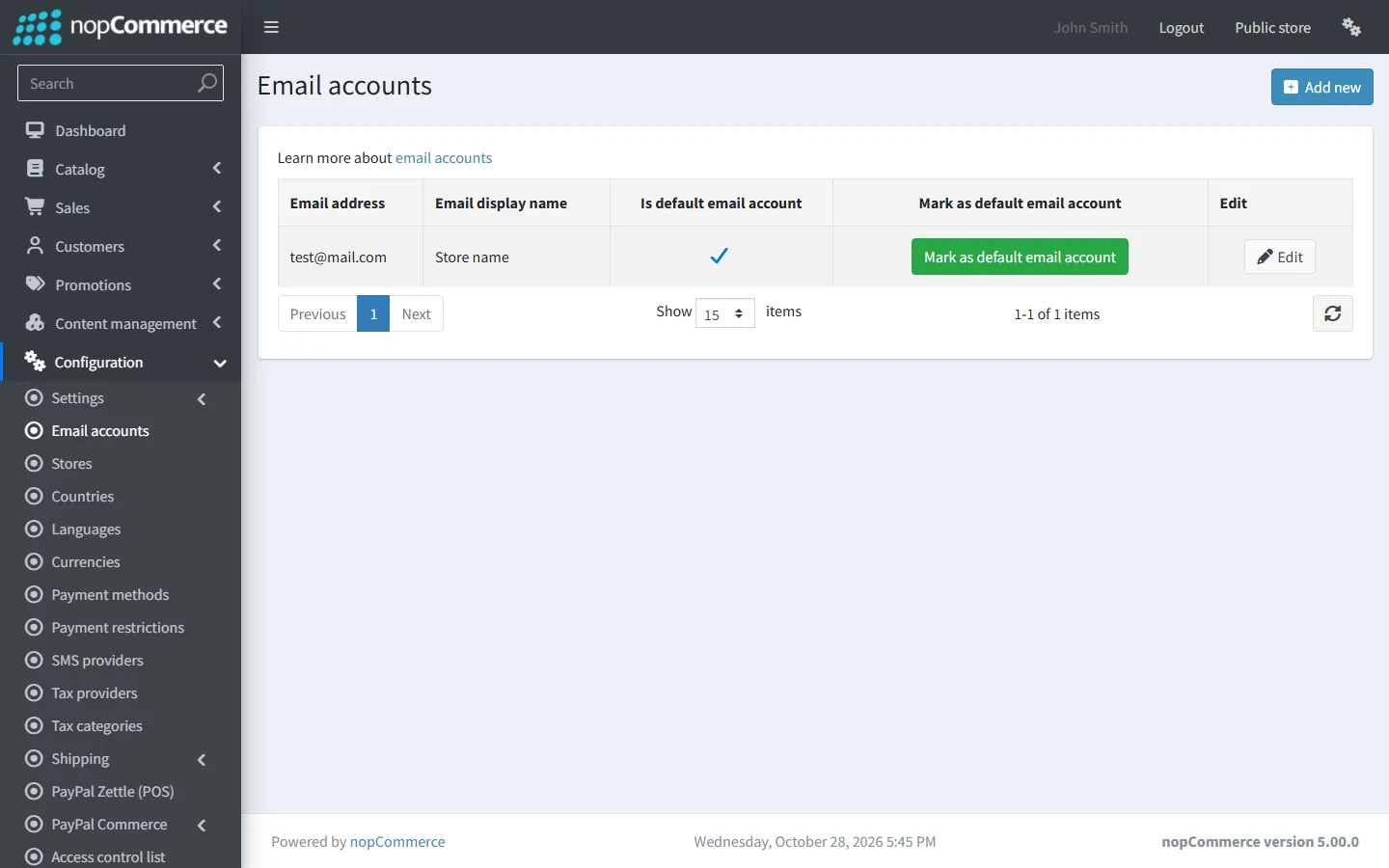
Email account setup
StorePulse check EMAIL-005
What StorePulse checks
That the default email account exists, and that every account has a valid email address, an SMTP host and a port between 1 and 65535. A missing default account is critical.
Why it matters
nopCommerce uses the default account for most messages. Without a working one, no customer or admin email can be sent.
Common causes
- The default account was deleted, or the default was never changed from the installer’s sample account.
- An account was saved without a host, or with a typo in the address.
How to fix it
- Open Configuration → Email accounts and edit the account, or add a new one.
- Fill in the email address and display name customers should see.
- Enter the SMTP host and port, tick or untick “Enable SSL” to match the port, and pick the authentication method.
- Enter the user name and password (or connect the OAuth2 app for Gmail or Microsoft).
- Save, then click “Send test email” and check your inbox and spam folder.
- On the email accounts list, mark the working account as default.
Email account settings explained
These are the fields on the email account page in nopCommerce 4.80 and 4.90.
- Email address and display name: the From address and name. Use an address on your own domain that your SMTP provider allows you to send from.
- Host and port: from your mail provider, for example smtp.gmail.com and 465 or 587.
- Enable SSL: tick it for port 465 (SSL from the start). Untick it for port 587, where nopCommerce switches to TLS when the server offers it.
- Authentication method: None, NTLM, Login (user name and password), Gmail OAuth2 or Microsoft OAuth2.
- Max number of emails: how many emails this account sends per run of the “Send emails” task. New accounts start at 50.
Make sure emails arrive, not just leave
A successful test email proves nopCommerce can hand messages to your SMTP server. Whether they land in the inbox depends on your domain’s DNS records. Ask your mail provider for the SPF and DKIM records for your domain, add them at your DNS host, and add a DMARC record. Without them, order confirmations from a new domain often go to spam.
Frequently asked questions
Can nopCommerce send email through Gmail?
Yes. Use smtp.gmail.com with an app password and the Login method, or choose Gmail OAuth2 as the authentication method and connect a Google Cloud OAuth client. Gmail limits how many emails an account can send per day, so busy stores should use a transactional email provider.
Why does “Send test email” do nothing?
The button uses the saved settings. Save the account first, then send the test. If it fails, the error appears on the page and in System → Log.
Check your store with StorePulse
StorePulse is a free, read-only nopCommerce plugin from Cartenvo. It runs these checks and 51 more in a few seconds, explains each result and links back to the guide for it. It works on nopCommerce 4.80 and 4.90 and 5.00 and sends no data outside your server.
Rather have someone fix it for you? Email contact@cartenvo.com with what StorePulse found and we will tell you what it takes.
If this keeps happening, we can fix it
If emails still don’t send after setup, we can check the configuration and fix it as part of our nopCommerce maintenance service.